Setup Voice Control
Editor
Add
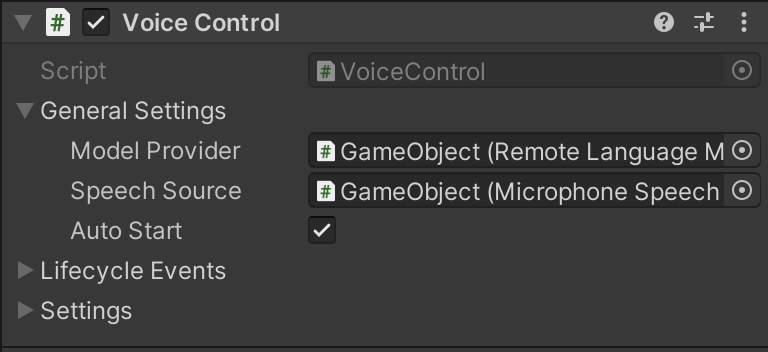
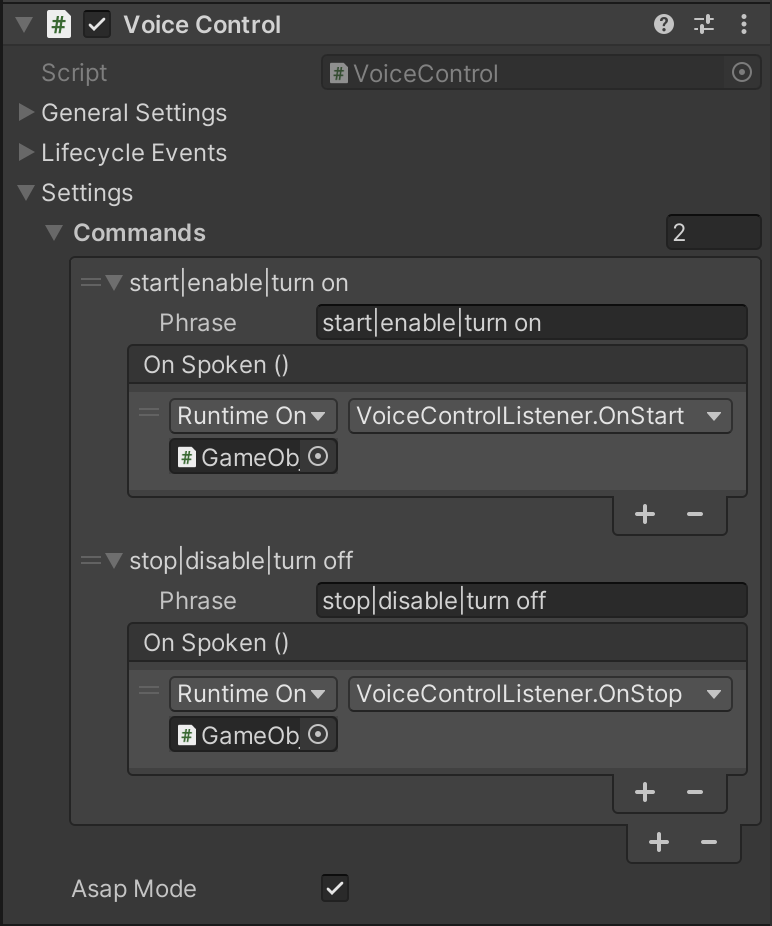
Voice Controlcomponent to the scene, enable flagAuto Startand connect language model provider and speech source to itSetup voice commands. Each command is a phrase and an event that is triggered when the phrase is spoken. The figure below shows an example of 2 commands that are activated when you speak "start" and "stop"
Test voice control
Create a script called VoiceControlListener.cs.
using UnityEngine;

public class VoiceControlListener : MonoBehaviour
{
    public void OnStart()
    {
        Debug.Log("start");
    }

    public void OnStop()
    {
        Debug.Log("stop");
    }
}
Add the
Voice Control Listenerscript and connect it to theVoice Controlevents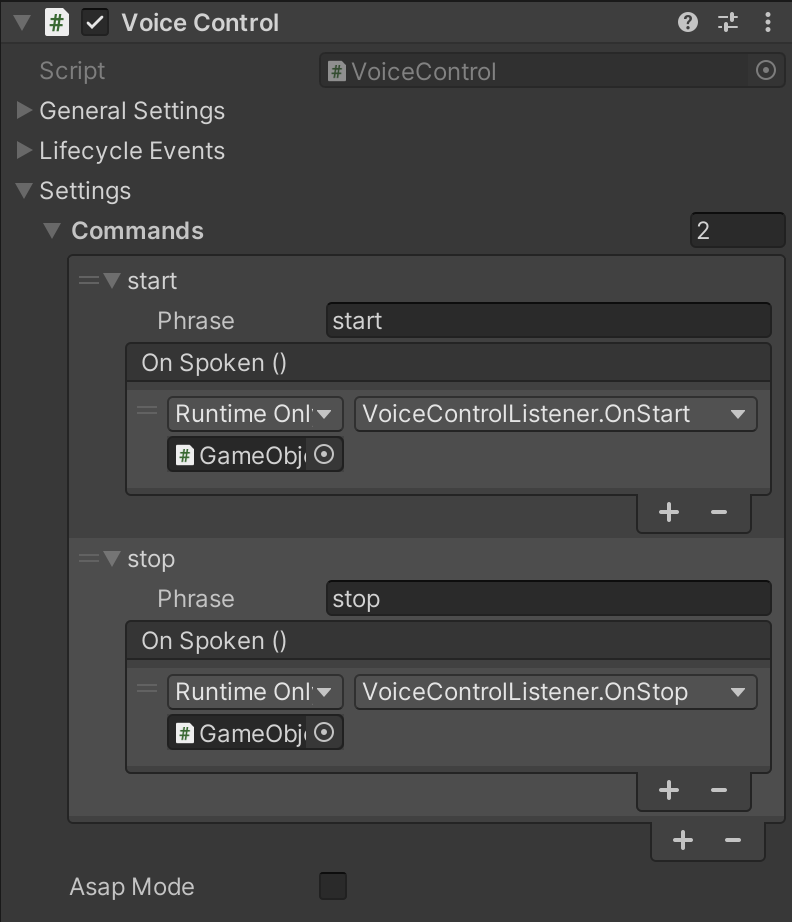
Press Play

Scripting
using System.Collections.Generic;
using Recognissimo.Components;
using UnityEngine;

public class VoiceControlExample : MonoBehaviour
{
    private void Awake()
    {
        // Create components.
        var voiceControl = gameObject.AddComponent<VoiceControl>();
        var languageModelProvider = gameObject.AddComponent<StreamingAssetsLanguageModelProvider>();
        var speechSource = gameObject.AddComponent<MicrophoneSpeechSource>();

        // Setup speech source and language model provider as in the previous example.
        // ...

        // Bind speech processor dependencies.
        voiceControl.LanguageModelProvider = languageModelProvider;
        voiceControl.SpeechSource = speechSource;

        // Setup voice control
        voiceControl.AsapMode = true;

        voiceControl.Commands = new List<VoiceControlCommand>
        {
            new VoiceControlCommand("start|begin", () => Debug.Log("Start")),
            new VoiceControlCommand("stop", HandleStop)
        };

        voiceControl.StartProcessing();
    }

    private void HandleStop()
    {
        Debug.Log("Stop");
    }
}
Asap mode
You can make Voice Control component faster by enabling Asap Mode flag.
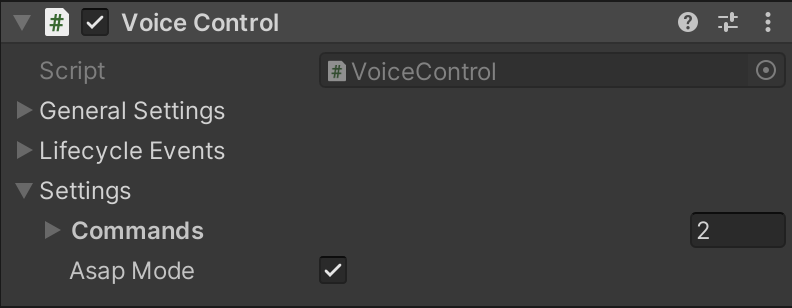
In this mode Voice Control component will use the preliminary recognition results to reduce response time.
How to use regular expressions
Voice Control supports regex patterns in phrases.
Note that Recognissimo doesn't support patterns with multiple spaces.
Use "|" to separate phrases
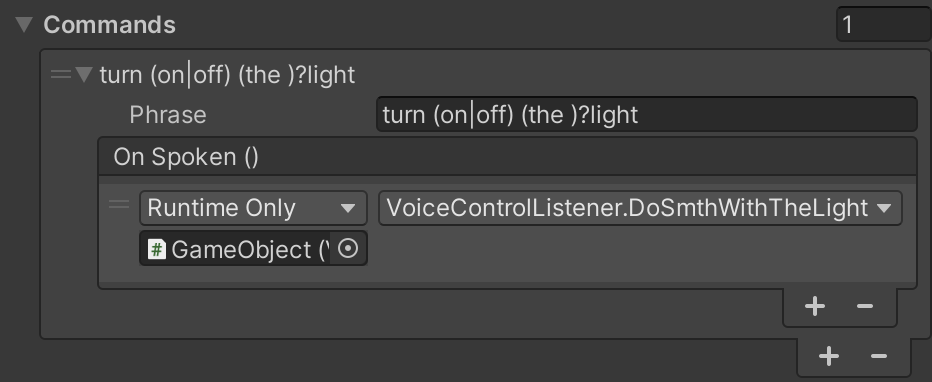
Use more complex syntax.
Voice Controlwill trigger the event when the user saysturn on the light,turn off the light,turn on lightorturn off light